






























































Introduction
Your VPS instance is provisioned with a base operating system and is ready for immediate use. However, many users prefer to deploy their own operating system or application stack.
This guide explains how to install one of our pre-built Operating Systems or Applications from the Hipposerve® Library.
Installing a Pre-Built Application or Operating System
Step 1: Access Your Hipposerve® VPS vPanel
Access your VPS vPanel by following this guide:
Accessing your Hipposerve® VPS vPanel
Step 2: Open the App / OS Installation Tool
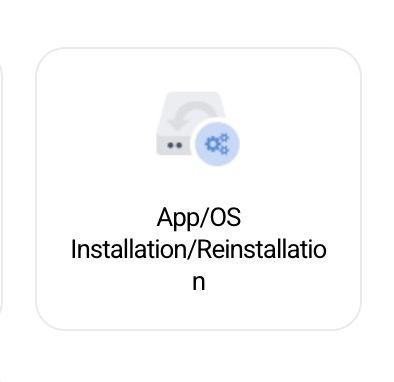
Within the vPanel, click on the App / OS Installation icon.
Step 3: Select Your Installation
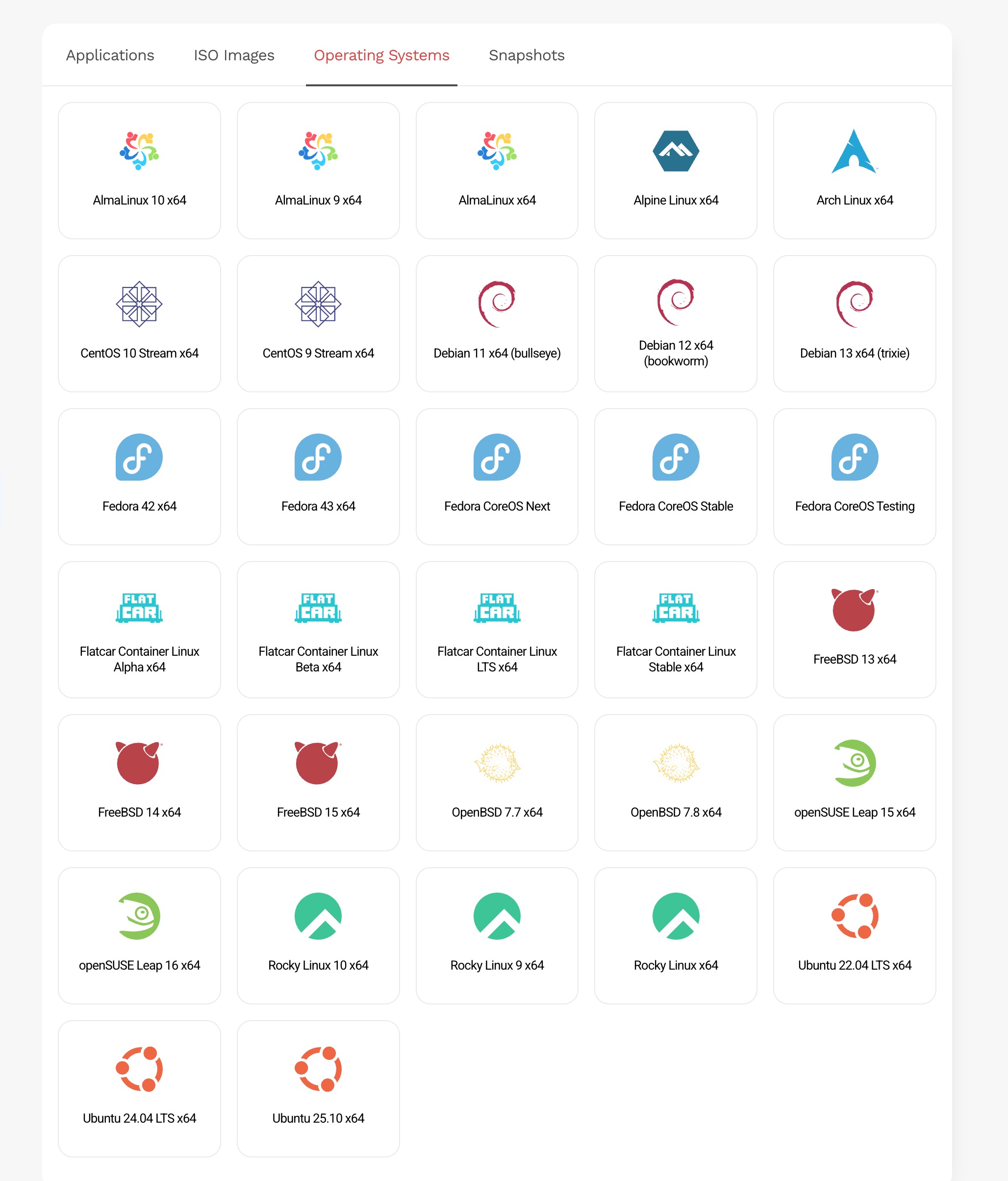
This will open the installation window. From here, you can select from:
- Applications
- ISO Images
- Operating Systems
Select the item you wish to install.
Step 4: Confirm the Installation
Confirm the installation to begin deployment.
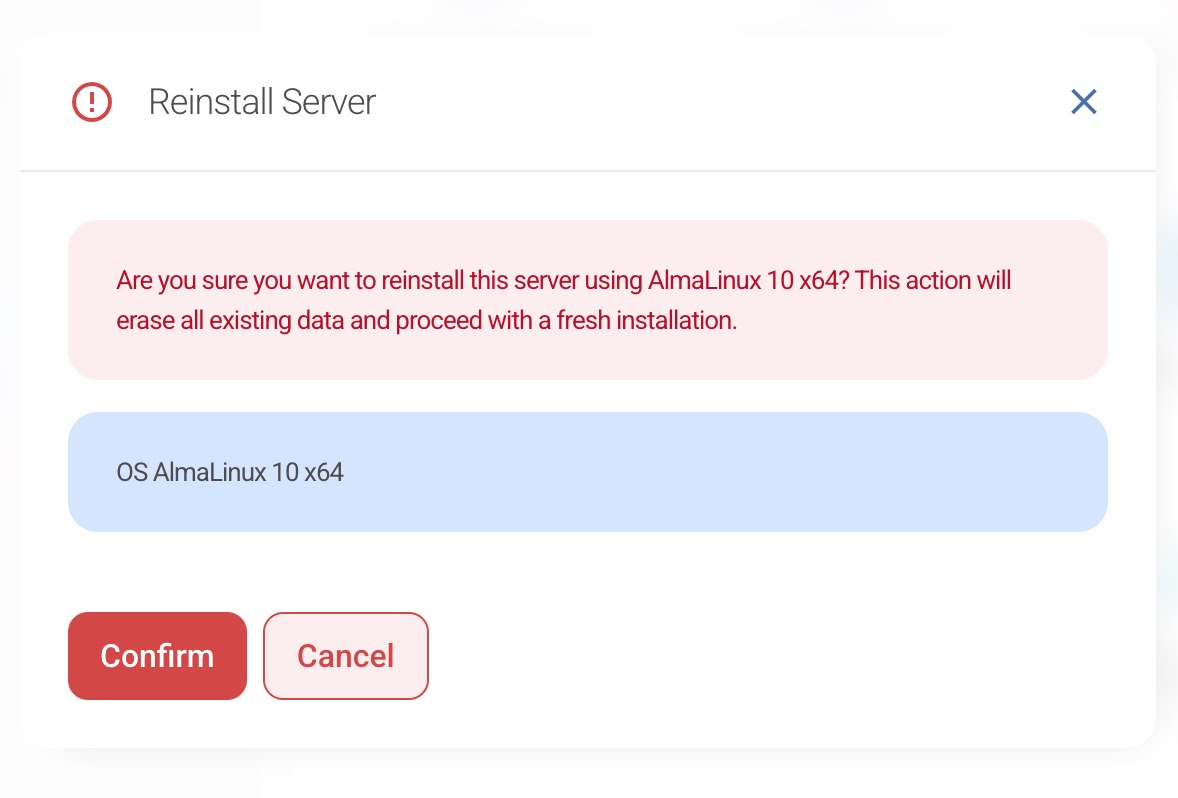
Important: Installing a new Operating System or Application will wipe all existing data on the server.
Recovery ISO Images
We also provide a number of Recovery ISO images designed to assist in server recovery scenarios.
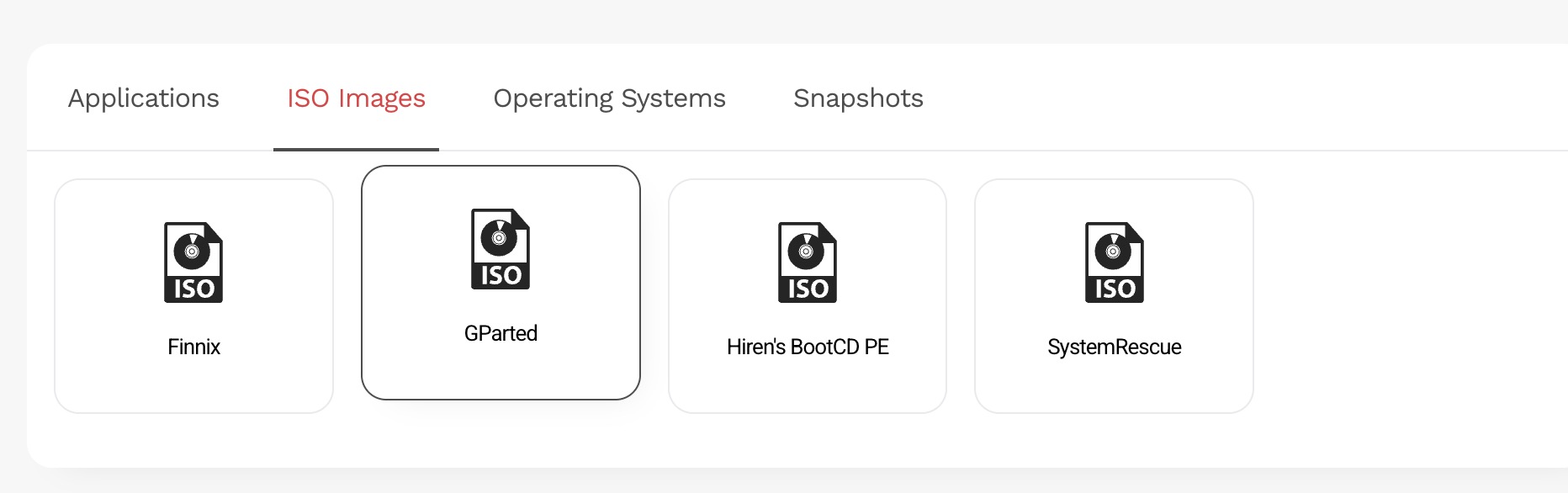
Recovery ISO images mount specialised recovery environments and do not wipe your existing server data.
Installation Time
The selected Operating System or Application will take several minutes to deploy.
During installation, access to your VPS and/or vPanel may be temporarily unavailable.