Knowledgebase Disclaimer
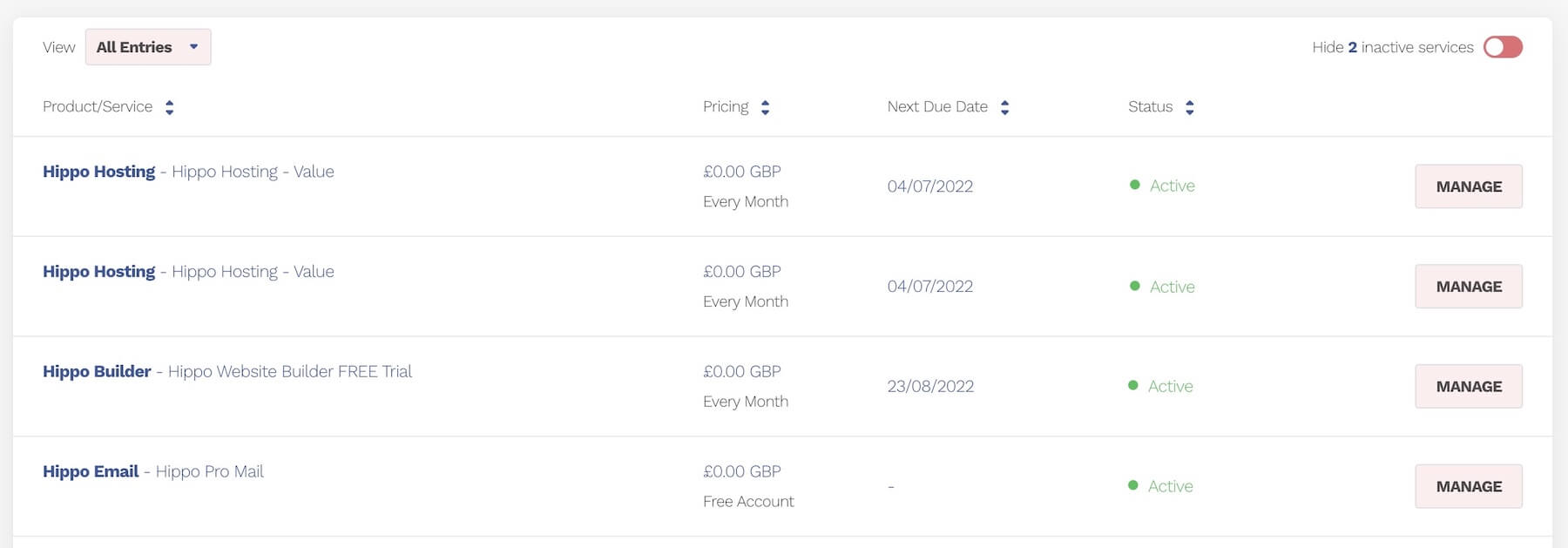
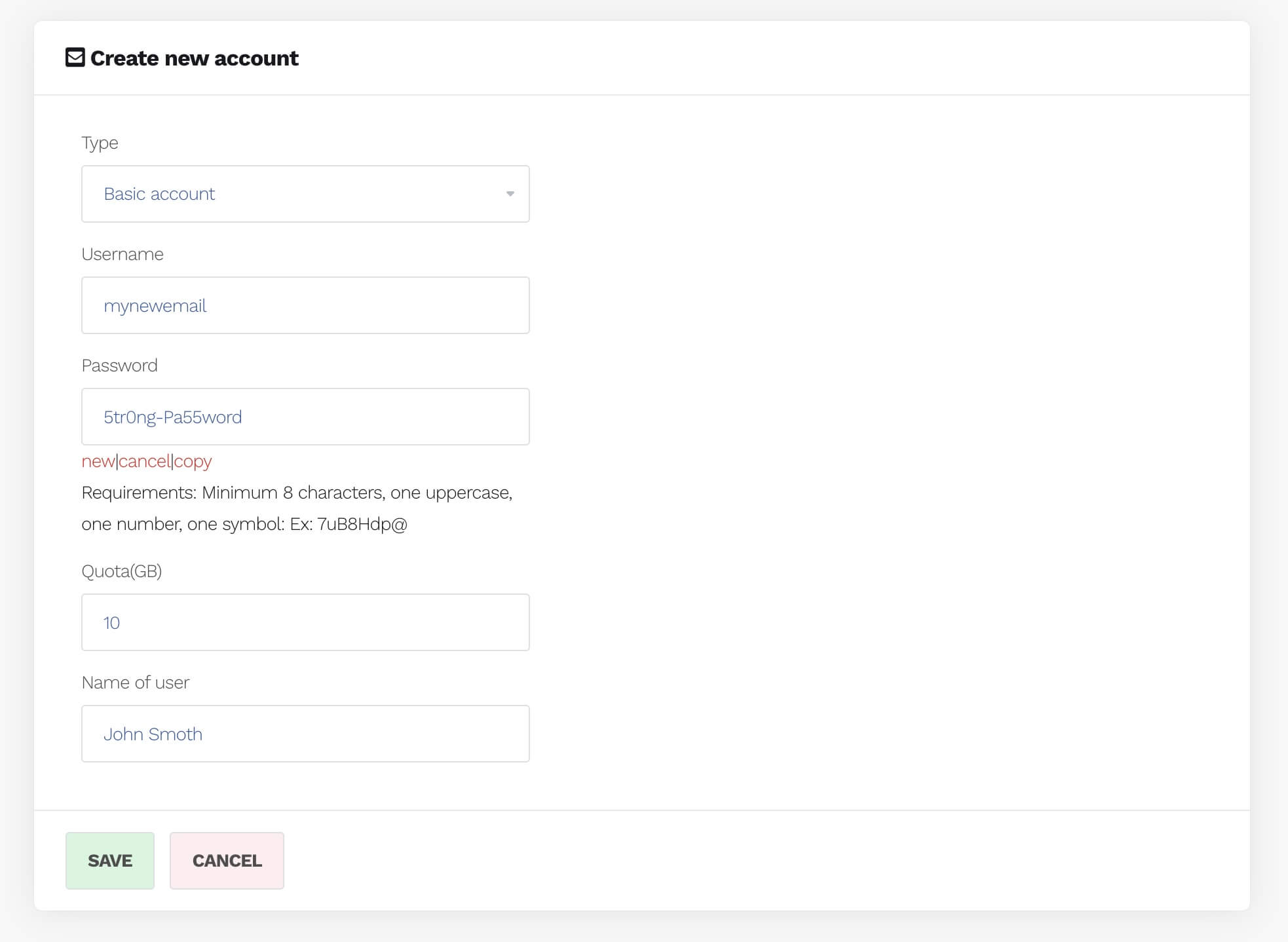
Our services often use third-party software that receives regular updates. While we strive to keep our knowledge base current, there may occasionally be minor discrepancies between our guides and the actual interface. Screenshots might not always reflect the latest user interface, though the functionality should remain unchanged. Please report any discrepancies or omissions to support@hipposerve.com
Translations: We strive to ensure that the translations in our knowledge base are accurate. However, translating screenshots or text on images, especially with third-party applications, is not always possible.