




























































Setting Up Hipposerve® ezForward
In this article, we’ll walk through how to set up Hipposerve ezForward using the built-in setup wizard.
The key to ensuring your domain forwards correctly — whether for website traffic or email delivery — is having the correct DNS configuration in place. Fortunately, the ezForward wizard automatically checks and fixes your DNS where required, making the process simple and reliable.
Important: DNS Changes
The ezForward setup wizard will modify your domain’s DNS records in order to provide forwarding services.
Before proceeding, we strongly recommend taking a backup of your existing DNS configuration. This allows you to restore your settings if needed.
You can follow this guide to create a DNS backup:
How to Create a DNS Backup
Step-by-Step Setup Guide
1. Navigate to Your Domain
Log in to your Hippo Portal and navigate to My Domains. Select the domain you wish to set up with ezForward.

2. Start ezForward Setup
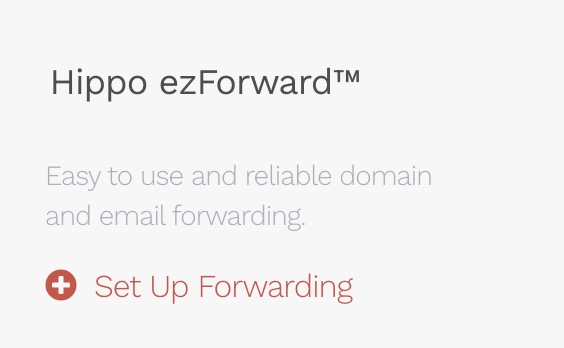
On the main domain management screen, select Set Up Forwarding from the right-hand menu.
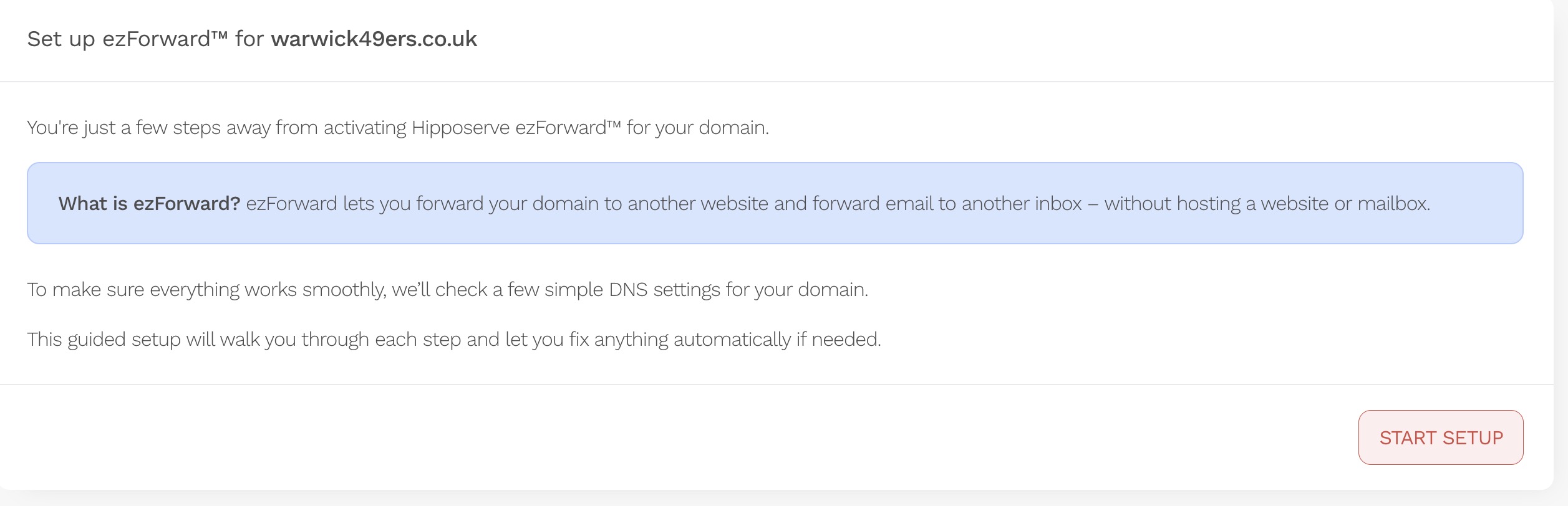
3. The ezForward Wizard
The setup wizard will guide you through the entire process. When you are ready, click Start Setup to begin.
DNS Checks Performed by the Wizard
4. Check 1: Nameserver Check
For ezForward to work, your domain must be using Hipposerve nameservers.
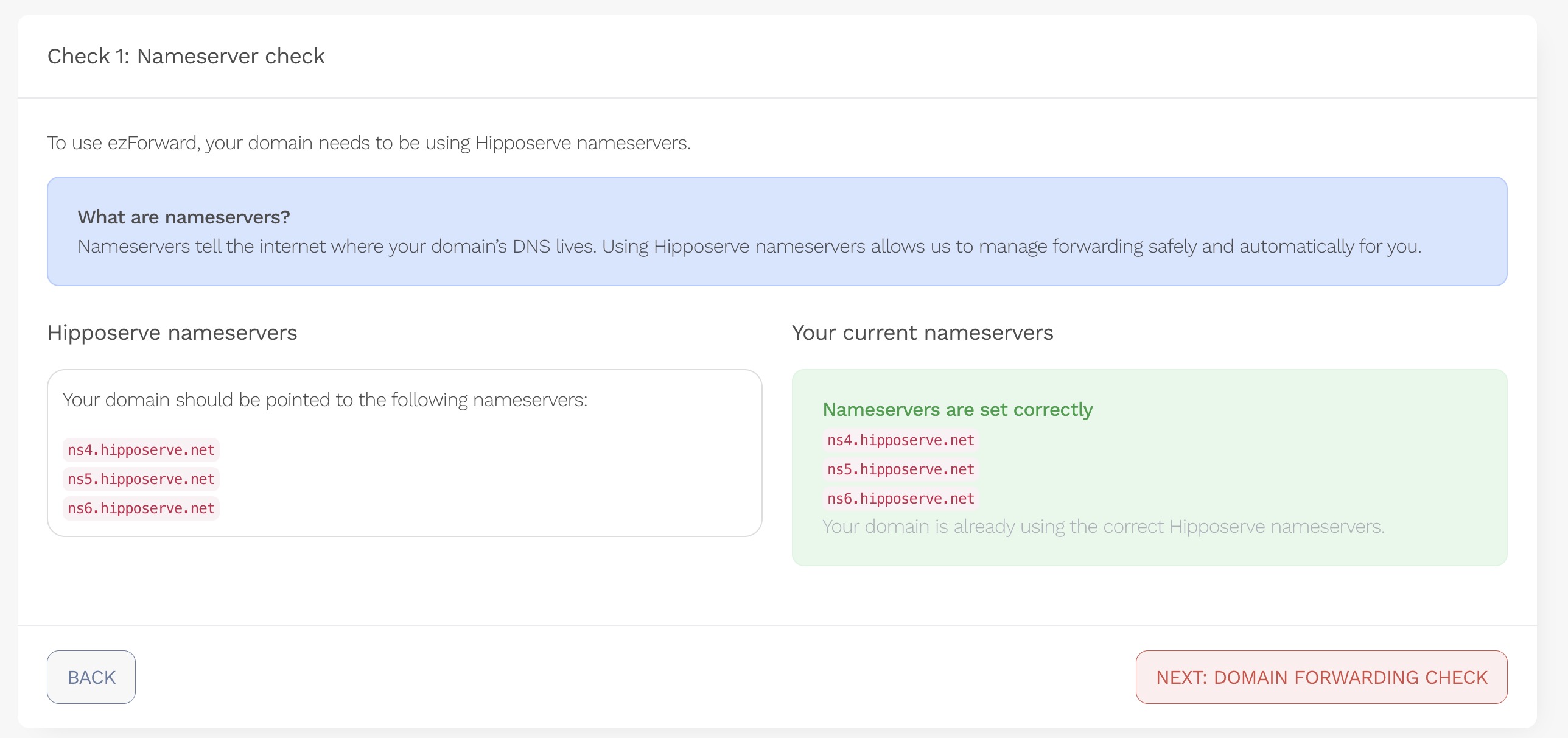
The wizard will automatically check that your nameservers are set correctly. If they are not, you will be shown a warning and given the option to fix them automatically.
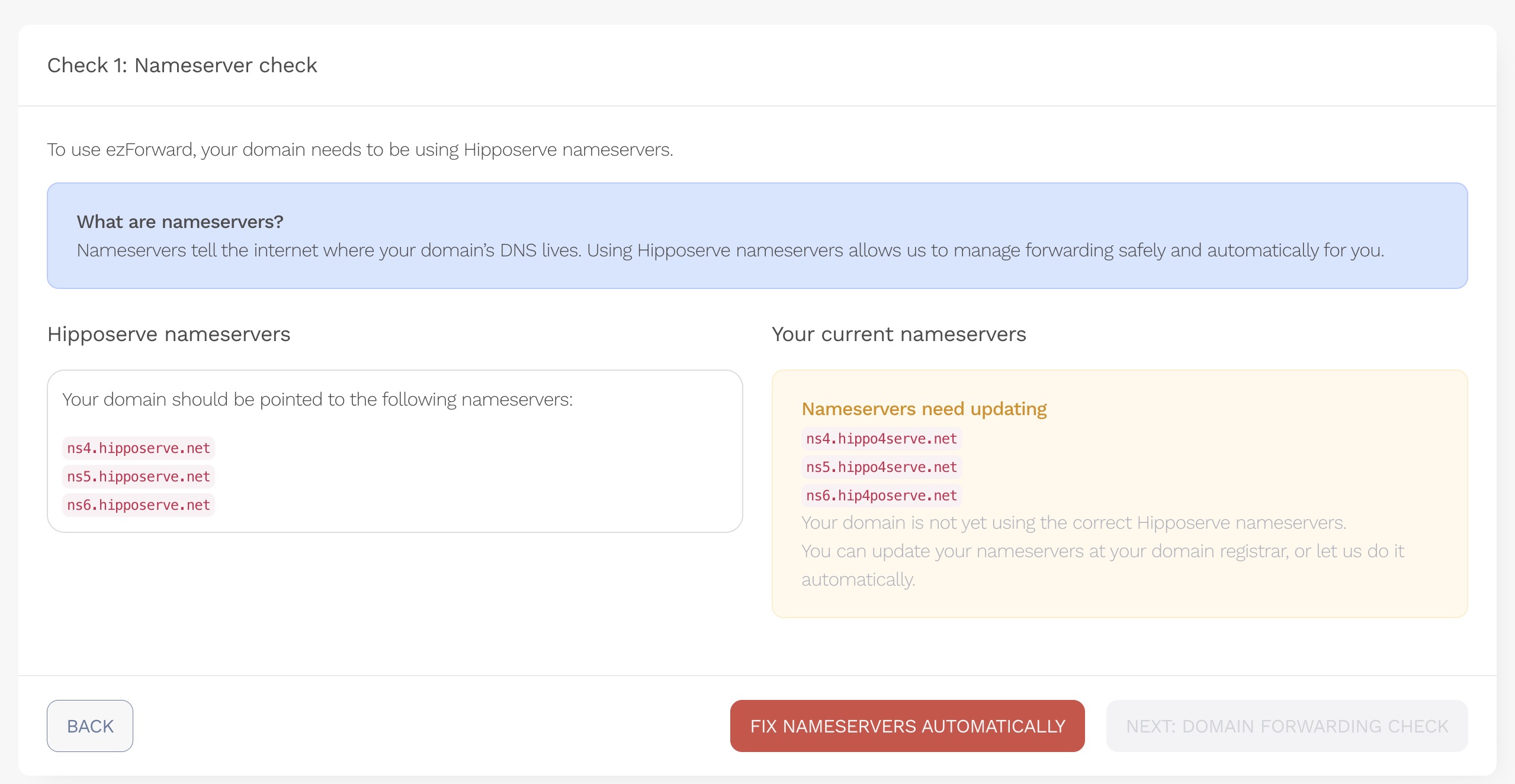
Once the nameservers are correct (or if they were already correct), you can continue to the next step.
5. Check 2: Web Forwarding DNS
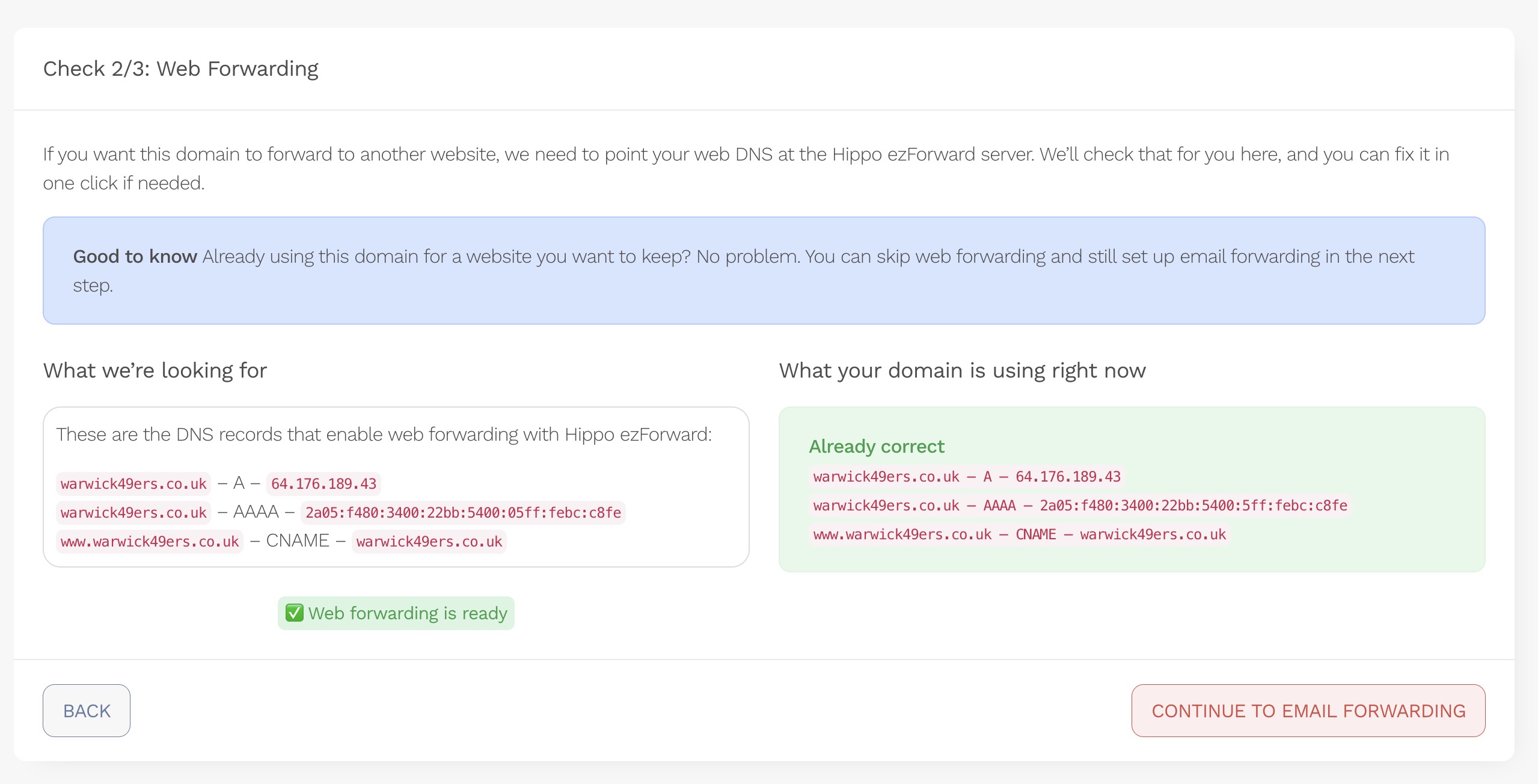
If you wish to forward your domain to another website, specific DNS records must point to Hipposerve’s forwarding servers.
If these records are missing or incorrect, you can fix them by clicking the Fix Web Forwarding DNS button.
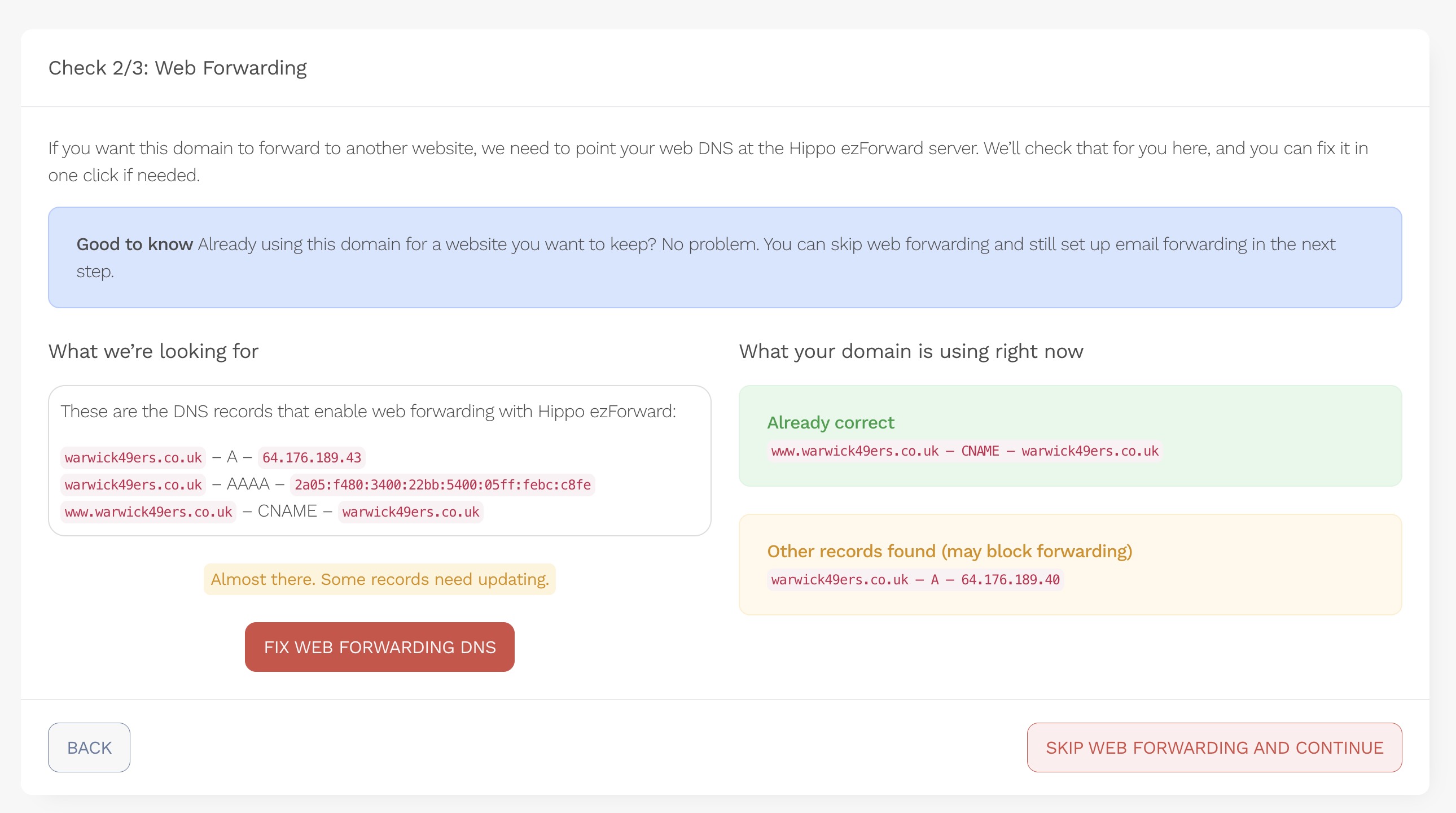
Warning: If this domain is currently connected to an existing website hosted elsewhere, updating the web forwarding DNS will stop that website from working.
If you do not wish to use web forwarding, you may skip this step.
Once the web forwarding DNS is updated, web forwarding is configured and you can continue.
6. Check 3: Email Forwarding DNS
As with web forwarding, email forwarding requires the correct DNS records to be in place.
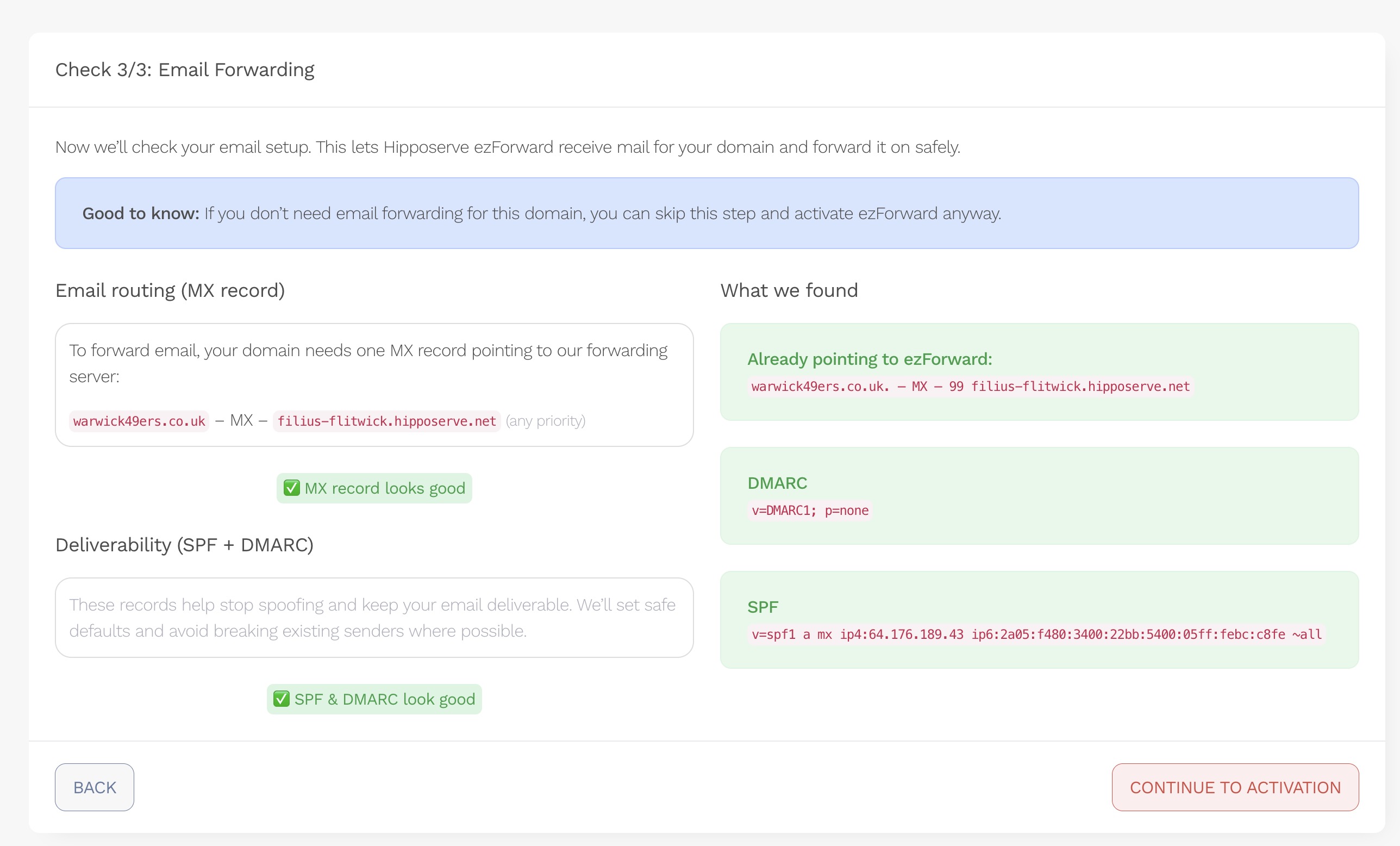
The wizard will check your MX and SPF records. If changes are required, you can fix them using the Update MX Record and Fix SPF buttons.
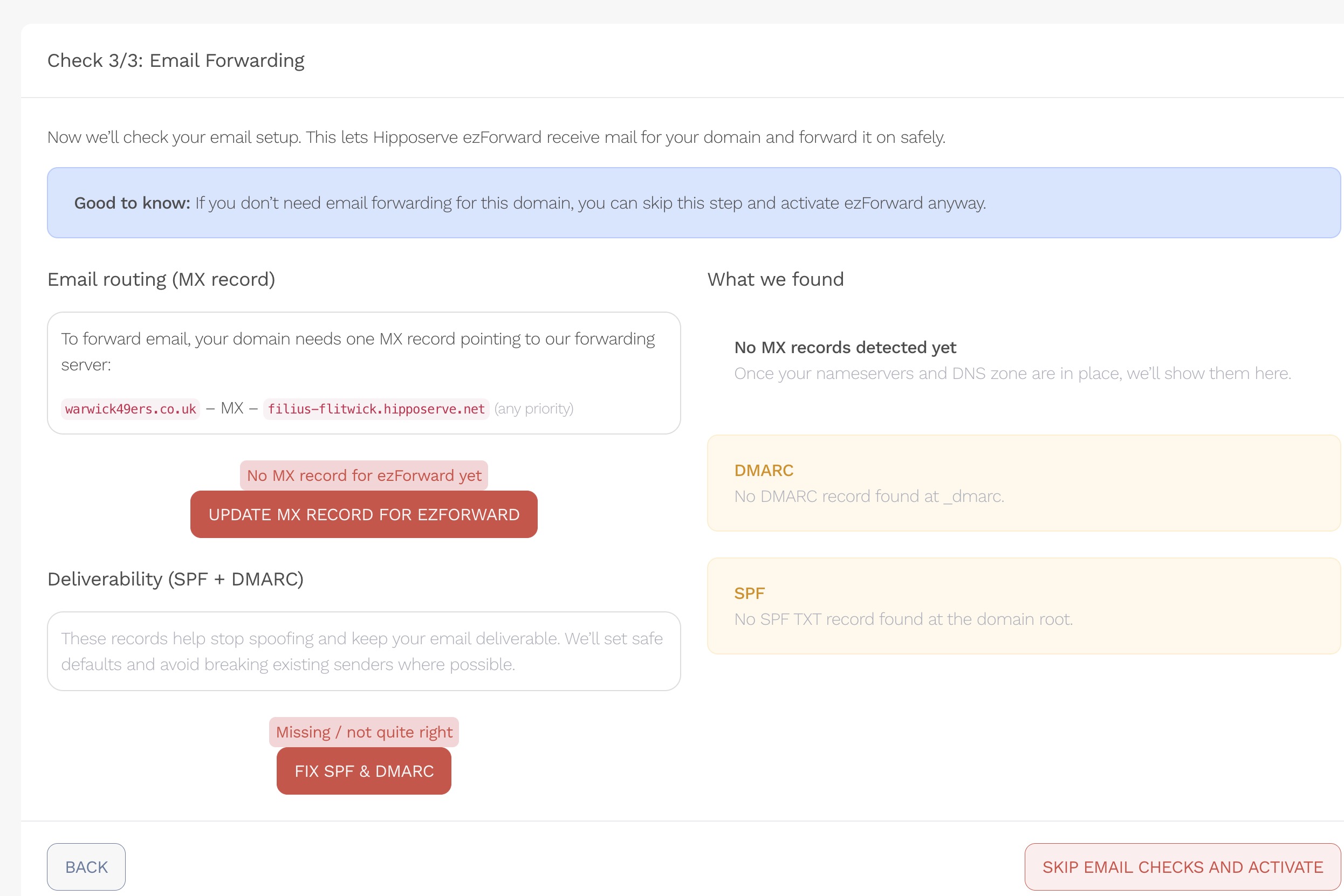
Warning: If this domain is already being used with another email service (including Hippo Mail or a third-party provider), updating these DNS records will stop that email service from working.
If you do not wish to use email forwarding, you can skip this step and continue.
Once the records are correct, email forwarding is configured.
Activation
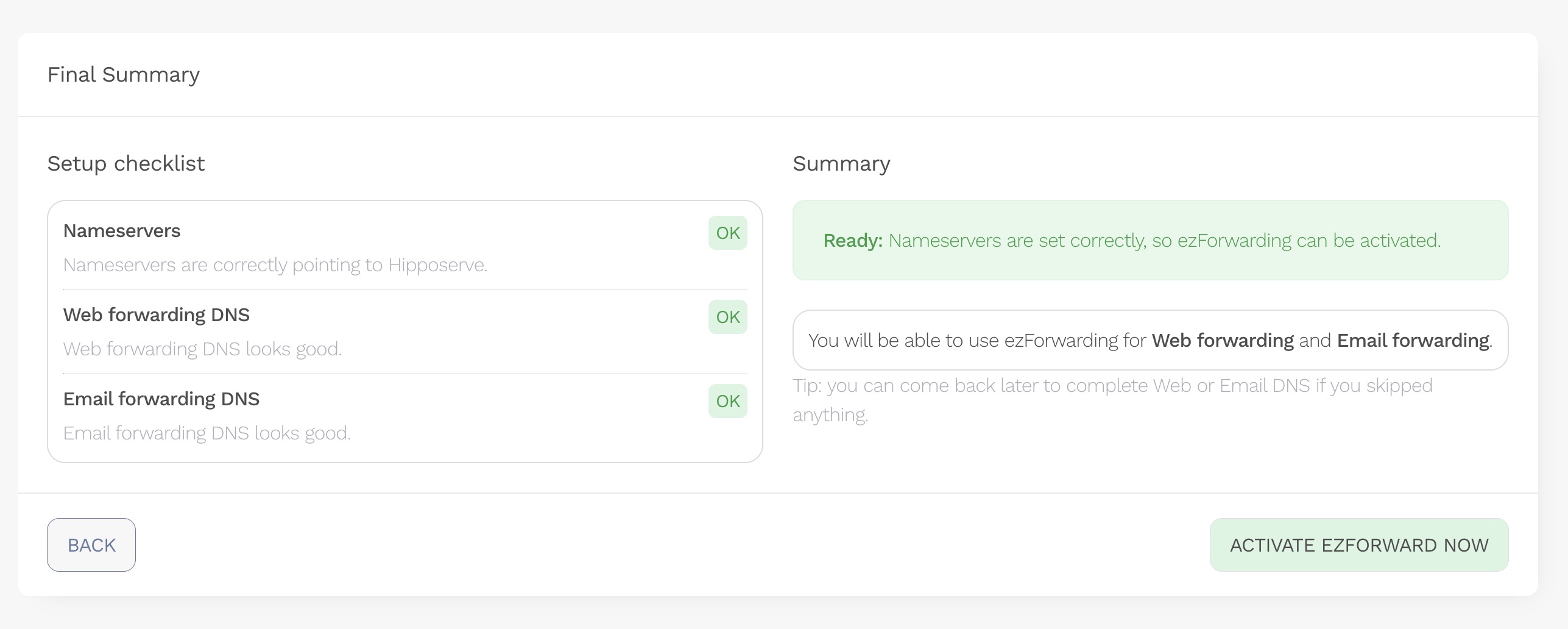
7. Activate ezForward
The activation screen will display a summary of your ezForward configuration.
When you are happy with the setup, click Activate ezForward Now.
You will receive an email confirmation once activation is complete. This may take a few moments.
You will then be redirected to the main ezForward control panel, where you can begin configuring your website and email forwards.
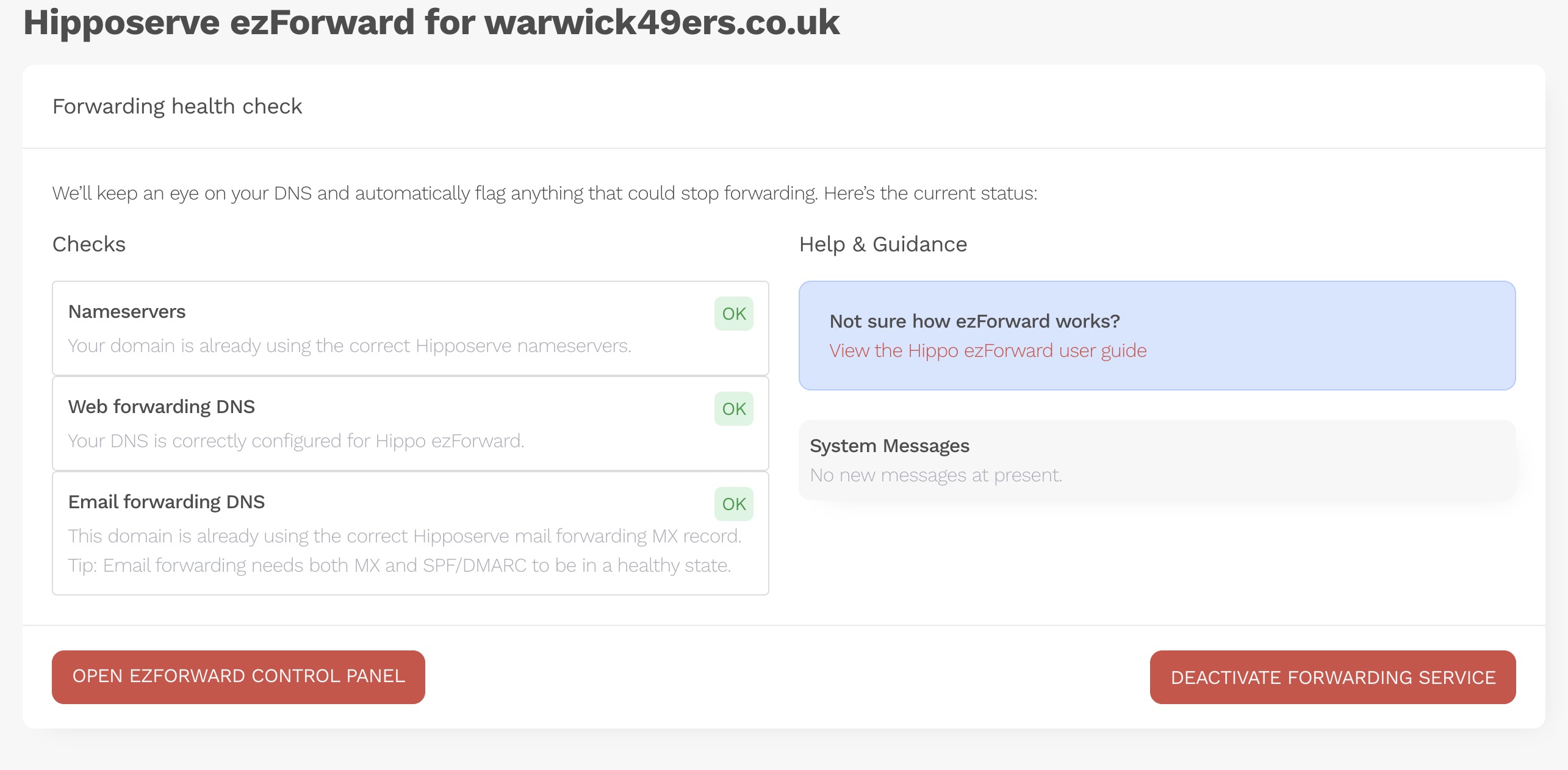
If you skipped any DNS steps, or if DNS settings change in the future, the ezForward system will regularly recheck your configuration and notify you if attention is required.
Final Notes
Because DNS changes are involved, please allow 24–48 hours for forwarding to become fully functional, although in most cases changes take effect much sooner.
If forwarding does not appear to work immediately, this is usually due to DNS propagation and will resolve automatically.